2011年10月28日星期五

New Beginning of Nokia: Lumia 800 and Lumia 710

Nokia released its first Meego smart phone Nokia N9 at Nikia Connection 2011, Singapore, 21st June, 2011. Four monthes later, at London, Nokia introduced its first two smart phone using Windows Phone, which named after lumia series at Nokia World 2011. The Nokia Lumia 800 is for high-end market and Nokia lumia 710 is for young people with low price of course. This aritcle aims to introduce this two new Nokia products to you and hope you can give Nokia a reunderstanding after its cooperation with Microsoft.

Lumia 800 is the first Nokia cell phone using Windows Phone Mango system and its appearance is almost the same as Nokia N9 with Meego: curved screen, one piecce polycarbonate technology, 16GB memory space and 1540 mAh battery. Lumia 800 has a 8 megapixel camera, the same as N9. The different with Nokia N9 is the Lumia 800 has a 3.7 inches screen with a resolution of 480*800 and has a 1.4 Ghz single-core Qualcomm MSM8255 processor and its RAM is 512MB.

It is difficult to identify lumia 800 and N9 from outside appearance. It is understandable that N9's unique sliding operation and polycarbonate technology received the world's attention, but the sales performance is not that good. Nokia will not waste this nice design, it is a nice idea to combine the appearance of N9 and the new smart phone platform.

First let us talk about Lumia 800's screen. Its 3.7 inches AMOLED screen is the best one that I have ever seen on WP7 mobile phones. In the dark room, it is still colorful, real and without many rendering. Nokia 800's shell is one piece polycabonate and its color is the material's color. It is impossible for Nokia 800 to loose color. The curved screen design of N9 helps Nokia 800's sliding operation. People who use mobile phones with Windows Phone know that you needs to slide to switch the main screen and the menu. Nokia lumia 800's screen is much better than other manufactures.

Nokia 800 does not use the 3 interface of N9 and they just use the Microsoft Metro interface without any change. I believe that Nokia does not want their first cell phone with WP7 has too many differences with other phones with WP7 from other manufactures, that avoid the division of Android. Altough the UI has no big difference with other WP7 phones, Nokia 800 is much better on operate effect and full touch operation because of the 1.4 GHz CPU.

All the Windows Phone products has a physical camera shortcuts button on the right side of the body, so does Nokia lumia 800. And the resolution, 480*800, is also set by Microsoft. I think Microsoft does not want their products as division as Android. So they set a series of settings for Windows Phone 7 and the camera shortcuts button and screen's resolution are listed.

Talking about the hardware, we need to notice that the three button under the screen. They have nothing special but because of them, the camera of N9 disappear. This is also because the system's limitation, WP7 Mango does not support video call.

The same outside appearance as N9, Nokia lumia 800 has a totally different system with it. As a strategic partnership of Microsoft, Nokia's Windows Phone 7 mobile phone has some special features of course. To users, Nokia car is one of these features. Nokia Public Transport app provides more than 430 cities' bus information around the world, including 45 cities' to-the minute updates of bus and train lines.

Nokia 800 presets ESPN program, which can show the time, schedule and results, etc. It can also be fixed on the strat screen and refresh the results easily.

Another features is about the music: Mix Radio, Nokia's music service. It is a kind of radio app. You can enjoy the free music on line without register or subscribe. However, Mix Radio is only available in few countries.

In addition, Nokia also published Nokia Pulse, Nokia users can share location and photos privitely and add location info to important contact. Nokia also showed us Nokia Live View. It allows Nokia users to point a building and street and the name of the building and street will appear on the map, users can get the information of the shop, restaurant and other info once they click the name.

In the system, we also see that Nokia's contact move function. It is a app that first appear on Symbian, now they brings it to its Windows Phone mobile phone. Compare with other WP7 phones, Nokia's has not many differences and the combine of Nokia software store and Microsoft Marketplace was not mentioned, also Wifi Hotspot was not appear in this system.

Although we believe that Windows Phone system, one day, will match google android and apple iOS, now Windows Phone's system is still not complete. The cooperation of Nokia and Microsoft will speed up the process, but two mobile phones can not do all the tings. Just like Nokia's saying on the conference, it is a new beginning and they need time to solve problems from all aspects.

Hello, my name is Pele. I'm interested in mobile phones and other electronic devices such as Apple iPod, iPhone, iPad. I am also a software editor about backup iphone sms, total video converter and hope my article can help you. Thanks.

2011年10月27日星期四

How to Convert DVD and Video to Your Fashionable iPad

iPad has been released for about a month, but it is pretty popular among people. I think you guys who got iPad are very proud. How do you make full use of its great space without spending extra money? Show it off before friends? It is the best choice to use DVD collection and video you have. But how do you deal with it?
Recently I got the information from internet. I feel it is useful for all, so I’d like to share it with you guys. It is third-party software that can rip DVD and convert video for iPad. And the whole process is so easy. They are Aiseesoft DVD to iPad Converter and Aiseesoft iPad Video Converter.

Next it is divided into two parts to describe it in details.
Part One: How to Rip DVD to iPad.
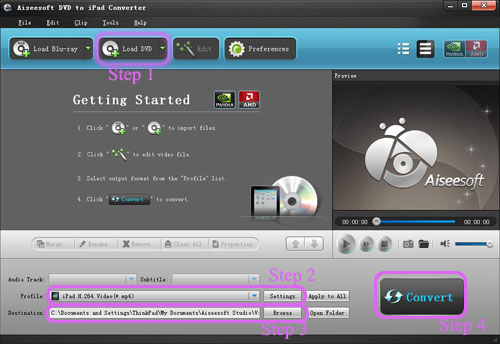
Firstly you need download the software: Aiseesoft DVD to iPad Converter. And then install and run DVD to iPad Converter.
The specific operating steps as follows:


Step 1: Load DVD.
Click "Load DVD" to add your DVD contents.
Step 2: Set output video format.
Click "Profile" button from the drop-down list to select the exact output video format that is the most suitable for your iPad. You can click the "Settings" button to set parameters of your output video such as such as Resolution, Video Bitrate, Frame Rate, Audio Channels, Sample Rate, etc. to get the best video quality as you want.
Step 3: Select the output path by clicking “Browse” button from the line of destination.
Step 4: Click the "Start" button to start the conversion.

Part Two: How to Convert Video to iPad.

Also it is the same. Firstly download the software: Aiseesoft iPad Video Converter. And then install and run iPad Video Converter.

The specific operating steps as follows:

Step 1: Add video.
Click "Add Video" to add your video contents.
Step 2: Set output video format.
Click "Profile" button from the drop-down list to select the exact output video format that is the most suitable for your iPad. You can click the "Settings" button to set parameters of your output video such as such as Resolution, Video Bitrate, Frame Rate, Audio Channels, Sample Rate, etc. to get the best video quality as you want.
Step 3: Select the output path by clicking "Browse" button from the line of destination.
Step 4: Click the "Start" button to start the conversion.

Tips:
The two pieces of software have some basically editing functions such as trim, crop, effect,
1. Trim:
Three ways to do trim:
a. Drag the “start scissors bar” button to where you want to start and “end scissors bar” button where you want to end. (1)
b. You can click the “Trim From” button when you want to start the trim during your preview and click “Trim To” button when you want to end.
c. Set the exact “start time” and “end time” at right part of the trim window and click “ok”

2. Crop:
Three ways to do crop
a. Select one crop mode from the "Crop Mode" drop-list.
b. Dragging crop frame to choose your own crop.
c. Set your own crop value.

3. Effect
Drag the adjustment bar to find your favorite effect of Brightness, Contrast, Saturation and Volume.

4. Merge into one file.
Pick the "Merge into one file" to merge the files you choose into one output file. (2)

There is another piece of software named iPad Converter Suite. It includes DVD to iPad Converter, iPad Video Converter and iPad Transfer.

2011年10月26日星期三

Aiseesoft DVD Ripper for Mac Gets Major Update

Aiseesoft, a top-ranking Windows and Mac Blu-ray/DVD/video converting software provider, announced a major update to DVD Ripper for Mac last Friday. This new DVD Ripper for Mac brings users a large number of new wonderful features and improvements. In general, this DVD ripping software for Mac is re-developed with Qt development framework, and it supports 5.1 Dolby surround sound and the WebM output video format. Also many other special and neat changes were made.

Detailed information of the updated DVD Ripper for Mac:

  • More user-friendly graphical interface
  • Enhance the ability of parsing DVD
  • Improve the "Merge" feature
  • Support outputting video without audio track
  • Support adjusting output file volume
  • Renew the output profile
  • Support setting output video aspect ratio

Aiseesoft DVD Ripper for Mac is professional DVD ripping software designed for Mac users. It can help users rip any DVD to popular video files, like AVI, MP4, MOV, MKV, WMV, FLV, DivX, XviD, MPEG-1/2, 3GP, VOB, HD TS, HD MTS, HD M2TS, etc. on Mac. So this wonderful software enables customers to enjoy DVD movies on any portable devices, such as iPad, iPhone, iPod touch, smartphone, PSP, Android devices, BlackBerry, etc.

Also this Mac DVD Ripper has powerful video editing features. For instance, it can help customers cut off any DVD segment and convert it to video file, crop video frame, add any text/image watermark to their video, join DVD clips together, and even adjust video brightness/saturation/contrast/hue/volume.

System Requirements

OS Supported: Mac OS X v10.4 - v10.7

Hardware Requirements: 512MB RAM, Super VGA (800×600) resolution, 16-bit graphics card or higher.

2011年10月25日星期二

Aiseesoft Releases iPad Transfer Platinum: Best iPad Assistant Tool

To provide users with the best iPad assistant software, Aiseesoft releases a professional . This powerful iPad transferring software can meet nearly all needs of iPad users, such as transferring all types of files, and converting Blu-ray/DVD/video files to iPad, etc.

Compared with the standard edition of Aiseesoft iPad Transfer, this iPad Transfer Platinum supports more document types. It can help customers transfer music, movies, pictures, TV shows, Podcast, iTunes U, eBooks, Camera Roll, voice memos, camera shot from iPad to computer. Also this software is able to import music, video, ePub, PDF, image files from computer to iPad. What's more, this amazing transferring software supports transferring these files between iOS devices. For instance, users can transfer favorite songs from iPad to iPhone or iPod for enjoyment.

This professional iPad Transfer Platinum can also act as the iPad converting software. It can convert Blu-ray (BD), DVD, and videos to iPad compatible video/audio formats. And the powerful video editing features allow users to trim video segment and convert it to iPad, crop video frame, add any watermark to video, adjust video effect, and so on. And this iPad Transfer Platinum has adopted the AMD APP and NVIDIA® CUDA™ GPU acceleration technology, which can bring much higher converting speed while converting files to iPad on computer with the CUDA-enabled or AMD APP-enables GPU.

Plus, this iPad Transfer Platinum supports all Apple iOS devices (iPad, iPhone and iPod). For iPhone users, this software can backup iPhone SMS and Contacts to computer, and create iPhone M4R ringtones with any video, audio and DVD source.

In a word, Aiseesoft iPad Transfer Platinum is definitely the best and most powerful assistant tool for iOS devices. It can help iPad users convert BD/DVD/video to iPad and transfer all files between iPad and computer.

System Requirements

OS Supported: Windows NT4/2000/2003/XP and Windows Vista, Windows 7

Hardware Requirements: 800MHz Intel or AMD CPU, or above; 512MB RAM or more

2011年10月24日星期一

How to convert mod to wmv/avi/mp4/mov/mpg for Mac/Windows

Nowdays, more and more people use camcorder to record something happy, such as birthday party, wedding, graduation etc. While, maybe lots of you aren’t familiar with these tools, feeling frustrated about how to convert and import properly those .MOD video files. Now here, I give some little tips and hope it useful to all of you.

First, what’s Mod?

.Mod files are actually MPEG-2 files with AC3 audio, similar to a VOB file on a DVD or the M2T files used on Sony hard drive camcorders, this video file format is used on many digital camcorders, such as the JVC Everio, the Canon FS100 and the Panasonic D-Snap SD-card camcorders.

Second, why and how we convert them to what we wanted video formats?

Because .Mod file is not supported by iPod Touch, iPod Nano, iPod Classic, iPhone, Apple TV, PSP, Zune, Creative Zen etc, so if you want to import MOD files from your camcorders to play on iPod, even burn to DVD to keep them, you have to convert them.
Here, I’ll share you with a useful tool to solve this problem.
Part one: For Mac users:

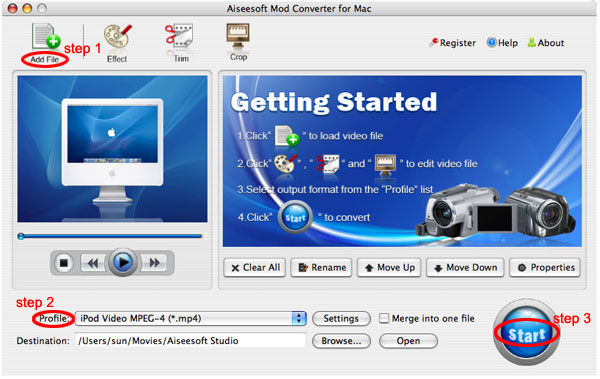
Aiseesoft Mod Converter for Mac can help you convert Panasonic/JVC/Cannon etc. Mod file to AVI, convert Mod to FLV, MPG, MP4, MOV, FLV, 3GP, etc., then you can enjoy edit them, enjoy them on your portable devices.

Now, follow the step-by-step guide and start the conversion.

Step 0: Download, install and run Aiseesoft Mod Converter for Mac
And after a while, you can see the following inferface:


Step 1: Load Video:
Click “Add File” button to browse your computer hard disc and load the MOD/TOD video files you want to convert to the software

Step 2: Set output video format
Click “Profile” button from the drop-down list to select the output video format such as AVI, MPG, MPEG and WMV. You can click the “Settings” button to set parameters of your output video such as Frame Rate, Bitrate to get the best video quality as you want.

Step 3: Click the “Start” button to start the conversion.

Tips:
This Mac Mod Converter also provides you with a series of video editing functions, such as crop video size, trim a clip of video, and merge several videos, set video effect.

1. Click "Effect" to make special effect for your movie.

You can adjust the “Brightness”, “Contrast”, “Saturation” and also you can use “deinterlacing” to improve you output effect.

2. Trim:
“Trim” function allows you to pick up any part of your video to convert. You can just convert a part of your video that you want.

3: Crop:
Cut off the black edges of the original movie video and watch in full screen on your iPod using the "Crop" function.

4. Merge into one file
If you want to merge several Mod/Tod videos into one file you can choose them and click the “Merge into one file” to do it

Part two: For windows users:

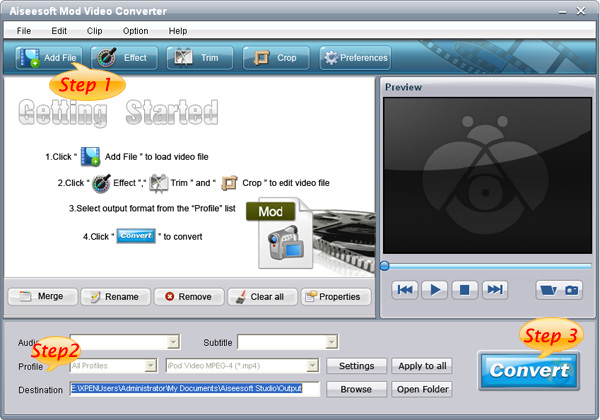
Aiseesoft Mod Converter has the same function

Step 0: Download, install and run Aiseesoft Mod Converter


Step 1: Click “Add File” button to add your video files
Step 2: Set output video format
Step 3: Click the “Start” button to start the conversion.


Tips:
This powerful Mod Converter also allows you to do many editing works, such as “Trim”, “Crop” and “Effect”

After you convert MOD/TOD Video files with Aiseesoft Mod Converter, you can import MOD Movie from your camcorders to Windows Movie Maker, iPod, Zune, etc without problem.

2011年10月23日星期日

How to Copy DVD, Rip DVD, Convert Video on MacHow to Copy DVD, Rip DVD, Convert Video on Mac

Many friends want to share their home-make DVDs and their DVD movies with others and also they always feel difficult to do that. Today I will share you a really easy way to Copy DVD to another DVD disc, DVD image ISO, or a DVD folder. Also I will also introduce you how to rip DVD and convert videos on Mac.

Part 1: How to copy a DVD to another DVD disc/DVD image ISO/DVD folder on Mac
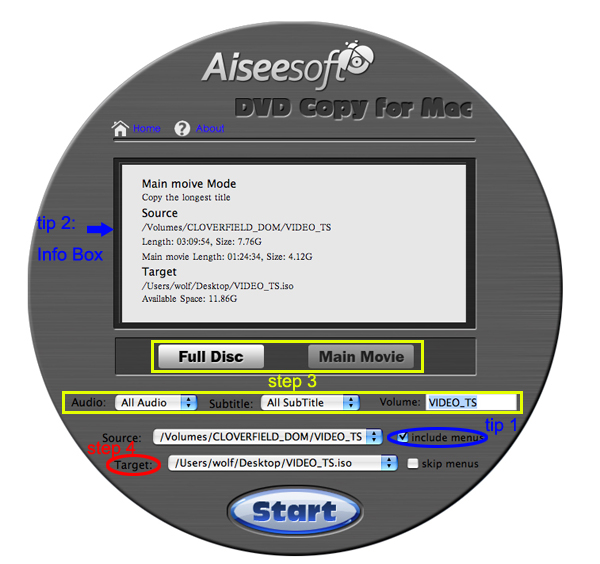
Step 1: DVD Copy for Mac.
To copy a DVD on Mac, you need a DVD Copy for Mac to help you. Aiseesoft DVD Copy for Mac is a good choice.


Step 2: Load Your Source
This excellent DVD copy for Mac allows you to load DVD folder and DVD image ISO.

Step 3: Choose Output Info
1. “Full Disc” or “Main Movie”
This DVD copy for Mac enables you to copy the full disc and also the main movie according to your need.

2. “Audio”, “Subtitle” and “Volume” name
You can choose your output audio from the “Audio” drop-down list, such as “all audio”/ “None”/ or some audio the DVD provide.

Subtitle is always an important thing, you can choose your output subtitle in “Subtitle” drop-down list.

You can also name your output volume's name

Step 4: Choose Your Target
You can copy your DVD to another DVD disc, DVD folder or DVD image ISO.

Tips:
1. You can also choose to copy the menus or not.
2. All the info you choose will be dispalyed on the “Info Box”.

Part 2: How to rip DVD to video formats on Mac

Step 1: Download Aiseesoft DVD Ripper for Mac

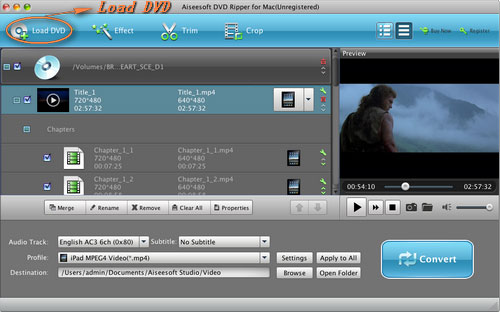
Step 2. Load DVD
Insert DVD into your DVD-ROM, run DVD Ripper for Mac, click “Load DVD”, find the DVD folder of the movie you want to add from your DVD-ROM, and Click “Open”.


Step 3. Set output format.
This best DVD ripper for Mac provides you output formats as many as you want. Just choose one from the drop down list “profile” according to your portable player.

Step 4: Conversion
You can just Click “Start” to begin your conversion.

Part 3: How to Convert Video files on Mac

Step 1: Download Aiseesoft Video Converter for Mac


Step 2: Load video
Easily click “Add File” to load your video that you want to convert.

Step 3: Choose output profile and settings
At the bottom of the interface there are a drop-download list named “profile”. You can choose your output format here.

Tips:
1. Trim
If you want to pick up a part of the video to convert, please click “Trim” button and drag the “Start trim slider” to set the start time and “End trim slider” to set the end time. (a) You can also do that by clicking the “Start trim button” and “End trim button” (b). The third way you do that is set the exact Start/End time at the right of the pop-up window and click “OK”.(c)


2. Crop
If you want to remove the black edges or you want to convert a certain area of your video, please click the “Crop” button. You can do this either by drag the frame around the movie (a) or set the crop value: “Top, Left, Bottom, Right”.(b). Another way to do that is choose models from “Crop Mode”(c).
Aiseesoft Video Converter for Mac also allows you to chose the output aspect ratio above the crop pane, “Keep Original, full screen, 16:9 and 4:3” are available.

3. Effect
If you want to adjust the effect of your movie, please click the “Effect” button and a pop-up effect window will appear. It allows you to edit your movie’s effect including “Brightness, Contrast, Hue, Saturation and Volume”.

2011年10月21日星期五

Top 10 Features in the New iOS 5

Apple will release the brand new iOS 5 for users to update soon for iPhone, iPad and iPod touch. For a lone time's waiting, Apple finally brings us the perfect iOS 5, the most advanced mobile operation system in the world, with notification center and other more than 200 upgrades.

Among the new features, some of them are already have on iPhone and iPad with 3rd party app. Now Apple brings them back to their own operation system. If you have ever used "WhatsApp", you will not feel strange when you are using iMessage. WhatsApp allows users to transfer info quickly, including words and multimedia stuff, and with no limitation on mobile platform. "iMessage" adds some new functions based on WhatsApp, such as store the conversation with iCloud. If your device has Instapaper, you have already experienced parts of the new version Safari's function. If you are using something like "Remember the Milk" as reminder, you will love the iOS 5's remind function badly.

Some other features may simple but really useful, such as you can take a picture with the volume-up button without unlock the screen. So many new features and now let us see the top 10 new features with iOS 5.

Top 1 Notification Center

I will give the top one new feature to Notification Center. Apple finally gives up the annoying pup-up window when you are playing game or having something important. The previous notice window like a box with no words, it is really annoying, especially at night, when you are playing games or just chating with friends, a notice window pop-up, have you ever imagine that you will throw your iPhone to the wall.

Now Apple brings us Notification Center to replace the unwelcome pop-up window. This one is like the "Mobile Notifier" app or something like that. The Notification Center not only shows user notice, but also the weather and app's real-time info. If you lock the screen, you can also use the drop-down notice without unlock the screen. When yo swipe the screen, you will see the summary of every notification.

Top 2 iMessage

Apple's iMessage is something like "BlackBerry Message". It runs on more than one devices with iOS 5. For example, you can first chat with your friends with your iPhone and then pick up your iPad to talk with them directly. In future, Mac OS Lion will have this feature also. With it you can see who is reading with delivery and read recipts. While, the difference with WhatsApp is that you can not run iMessage with uniOS devices. Maybe Apple thinks that it is not worth to talk to your friends that with Android and BlackBerry freely.

Top 3 New Camera and photo app

This version iOS has two simple but useful features that will meet all the users need. One is that you can access the camera app without unlocking the screen. You can just use grid lines and pinch-to-zoom gestures to get your shot just right. Focus with a tap. You will never pass a pictures that you want. The other is the you can just press the volume-up button to take photos without using the one on the screen. This will be the most welcome feature for the users who take photo often with iPhone.

The new camera app adds simple photo edit functions, you can easily edit your pictures with it, such as Crop, rotate, enhance, and remove red-eye. This will be really useful for the users who do not have "Camera Plus".

Top 4 Newsstand

There is a Newsstand on iOS 5, which is really like iBooks. But they have differences, such as the Newsstand is only for magzine and Journal. In fact, it is like someting the between iBooks and File folder.

Top 5 Twitter

In iOS 5, Apple brings Twitter into it everywhere. Such as post pictures to Twitter after you take your photo. IOS 5 allows you to share yous stuff on Twitter directly when you use YouTube, Safari and even Maps. And Apple adds a Twitter option under the contact list.

Top 6 New Safari

The new Safari adds several new features. When you are linking your iPad and iPhone, the webpage will be redesigned to adopt the difference between two screens, it will be more friendly for users when the page is without ads and redesigned.

The redesigned webpage will be added to the read list and saved , you can read it offline later. You can lso sync the page to different iOS 5 devices and Mac OS Lion devices and read them anytime and anywhere. It could be use the iCould.

The view page tab also be added to the new Safari, when you open a page, the tab will be listed under the address bar. It is really fast described by Apple official website. Hope it will sove the problems on lod Safari.

Top 7 Reminders

The new Reminders makes it easy to set out many things to do. Simple and clear, you can arange your day easily and also it can be sync with iOS 5 devices and Mac OS X devices. The most eyeball caught feature is that if you added "buy milk" to the to do list and you forgot it totally. Do worry, it will remind you when you are passing by a milk store or supermarket.

Top 8 Email System

Apple enhances the email system with much more text format. If your friend likes put all the words bold, that will be a dasister for you and you will not understand his point of view. So more text format can solve this problem easily.

The control of text indent. When you are quoting, you can control the indent yourself.

Top 9 No longer need PC's assistant

With iOS 5, your iPhone, iPod touch and iPad will no loner need the assistant from iTunes and PC. At this point, Apple finally catch up Android and Windows Phone 7. It is really convenient that when you open your new devices, a welcome interface will appear and you can update all your apps on iOS 5 with wifi.

Top 10 Game Center

Apple gives some improvment on Game Center and introducing some ideas from Xbox and other game platform, such as adding avatar, game discovery and supports Words for Friends and Scrabble and other game like that.

So all the Apple fans, updating your devices to iOS 5 as fast as you can and enjoy the over 200 new features brought from Apple.

iPad Transfer to you to backup your iPad music/video/pictures to computer.

DVD Ripper | Total Video Converter | iPad Converter

2011年10月20日星期四

How to enjoy commercial DVD on your wide screen TV via WD TV?

The WD TV is a consumer device produced by Western Digital that allows users to enjoy videos, images and music from USB drives on the wide screen TV. It is capable of playing most common general video and high-definition video formats through an HDMI port. However, if you want to enjoy commercial DVD on your TV via WD TV, you need some assistant tool because the WD TV can not decrypt copy protected commercial DVD. While Aiseesoft DVD Ripper can help you solve this problem with its powerful DVD converting function to rip any DVD to popular output video formats.

Step 1: Install the DVD Ripper

First, you need to download our software and install it.

Step 2: Load your DVD into this program

Click the "Load DVD" button to input your DVD. You can load DVD from the DVD ROM, DVD folder and the DVD IFO files. Then all the subtitles and chapters will show on the interface.

Step 3: Choose audio track and subtitle

If your DVD owns more than one audio track and subtitle, you can click on the pull down menu of "Subtitle" and "Audio Track" respectively to select your needed one for the output file.

Step 4: Define output profile

Click on the drop-down list of the "Profile" to choose an output format for WD TV. Most of the output formats are supported by your WD TV. If you want to customize the output format, you can click the "Settings" button to do some further settings.

Step 5: Start ripping DVD

The last step is to click the "Start" button to start converting your DVD to the output format as you defined. Then you can transfer the output file to the WD TV and enjoy it on your wide screen TV set comfortably.

2011年10月18日星期二

Aiseesoft Releases Major Update to Video Converter for Mac

Aiseesoft, a top-ranking Windows and Mac Blu-ray/DVD/video converting software provider, announced a major update to Video Converter for Mac last Saturday. With this professional Mac Video Converter, customers can conveniently convert all popular video files, like AVI, MP4, MOV, MKV, WMV, FLV, DivX, XviD, MPEG-1/2, 3GP, VOB, HD TS, HD MTS, HD M2TS, etc. on Mac.

The new version of this Video Converter for Mac brings customers many wonderful new features:

  • Qt development framework
  • More user-friendly graphical interface
  • Support 5.1 surround sound
  • Improve the "Merge" feature
  • Support DE, CUE and WebM file
  • Support outputting video without audio track
  • Support adjusting output file volume
  • Renew the output profile
  • Support adjusting output video aspect ratio

This is a totally free update for all old users of this software and the former user name and registration code are still valid. All new customers are also welcome to free download this amazing Video Converter for Mac to have a try.

Aiseesoft Video Converter for Mac, professional video converting software designed for Mac users, can assist users to convert all video files on Mac. With it, customers can conveniently enjoy any movie on portable devices, such as iPad, iPhone, iPod touch, smart phone, PSP, and so on. And this Mac video converting software also owns powerful video editing features. For instance, it can crop video frame, cut off any video segment, add watermark to any video, adjust video effect and join video clips together. For more information, please visit: http://www.aiseesoft.com/video-converter-for-mac.html.

System Requirements

OS Supported: Mac OS X v10.4 – v10.7

Hardware Requirements: 512MB RAM, Super VGA (800×600) resolution, 16-bit graphics card or higher.

2011年10月17日星期一

Itunes say “No”, We say “Yes”-- Aiseesoft iPod/iPhone Transfers.

Itunes do not allow iPod users to sync the music and videos back to their computer from iPod. It always say “No” when we try to do that. When you have this powerful iPod Transfer, backup your iPod music and videos to your computer will never be a problem to you.

This Powerful iPod transfer can help you to transfer all your music and videos back to your computer. It only transfer data, risk-free to try. And it supports all model of iPod and provides lifetime upgrade for free. Free download it and have a try, it is totally clean- no adware/spyware/virus.

OK, Let me show you how easily and fast you can do that.

For Windows User:
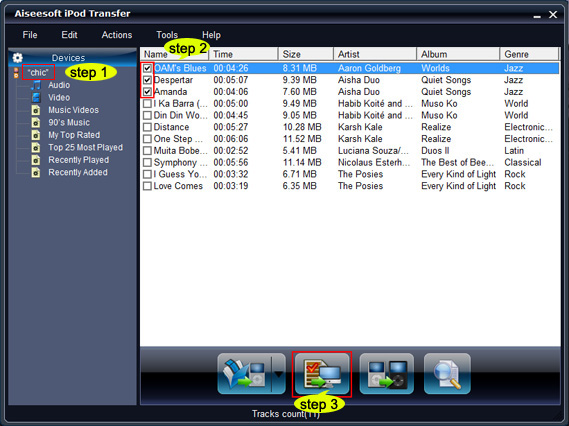
Part 1: How to transfer iPod music and videos to computer


Step 1: Connect your iPod.
Run the software, and connect your iPod/iPhone to your computer via USB cable. After done, the iPod/iPhone icon and its library and playlists will appear in the Device list.

Step 2: Find your files
Open the library/playlist that you want to export files, and then check the file(s) you want to export in the file list.

Step 3: Backup files
Click “iPod to computer” button to select the destination of the exporting files and start exporting files.

Part 2: How to transfer music and videos between two iPod.

Step 1: Connect iPod.
Connect your two iPod/iPhone to your computer via USB cable.

Step 2: Find your data.
Open the library/playlist that you want to export files. Pick the files that you need to transfer.

Step 3: Transfer data
Just click “iPod to iPod” button and it will show you the folder of another iPod that you want to transfer to. Click OK. The transfer can be finished automatically.

Part 3: How to transfer songs and videos from computer to iPod without iTunes.

Step 1: Connect iPod.
Connect your iPod/iPhone to your computer via USB cable.

Step 2: Find data
Click “computer to iPod” button to seek the files or folders that you want to import to iPod and click OK. The process of importing will be finished instantly


For Mac users:
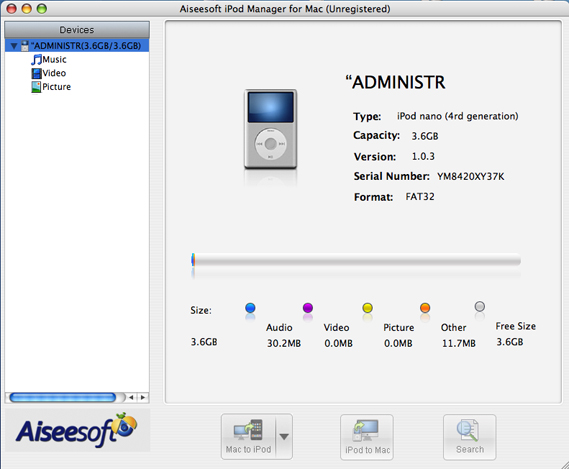
iPod Manager for Mac is the best tool for you to backup your iPod music and videos to your Mac and transfer music and videos from your Mac to your iPod without itunes.


If you want more about your iPod, I recommend you a really powerful and easy to use software to help you. It can help you convert your DVD movies and the videos on your computer to iPod video/audio formats, backup your iPod data to your computer, share your music and video on iPod with your friends, transfer music and videos from computer to iPod. It can also help you to make your own iPhone ringtone from your music and videos.

2011年10月15日星期六

iPhone 4S vs. iPhone 4

In the past few months, rumors about the coming iPhone 5 or iPhone 4S were in flood. Now finally Tim Cook brought the new iPhone 4S. And it will come into the market on October 14th, 2011. To upgrade or not to upgrade? That is the question.

We’ve taken an in-depth look at the key specs and seen how it compares to its year-older sibling – the iPhone 4.

Processor and memory

The iPhone 4S boasts the Apple A5, which is the same dual-core processor as the iPad 2. Apple A5, based on the ARM Cortex-A9 microarchitecture, is said to have twice the speed of the Apple A4 chip in the iPhone 4.

Siri

Siri is one of the lightspots of iPhone 4S. It is a voice-controlled personal organizer of a sort which will translate your more human, sentence-based commands into actions. So, for example, it can set alarms, read and reply to your messages, find restaurants and the like. The point is that it only comes with the iPhone 4S and not the iPhone 4 or below.

Video

One of the many features announced on the iPhone 4S is 1080p HD video recording. This is a nice improvement over the iPhone 4′s 720p HD video recording. The goodness does not stop there, however. In addition to 1080p, the iPhone 4S is equipped with video stabilization to help steady those non-professional, bouncy video recording skills. iPhone 4S video Converter | Total Video Converter

Camera

There’s a five element lens in the iPhone 4S instead of the four element in the iPhone 4, face detection and an 8-megapixel sensor. There’s 60 per cent more pixels, a larger f/2.4 aperture and an advanced hybrid IR filter that produces sharper and brighter images. The Camera app has also been improved and the shot to shot capability is twice as fast according to Apple. iPhone transfer | iPhone to Computer Transfer

Power and battery

The iPhone 4S has a slightly better battery life than the iPhone 4: up from 7 hours talk time on 3G to 8 hours. However, standby time is a cited 300 hours for the iPhone 4 but strangely this is 100 hours more than the iPhone 4S.

Storage

The iPhone 4S is still available at capacities of 16, 32, and 64GB. And the 16GB and 32GB version of the iPhone 4 line have been axed from this moment on, meaning that anyone who opts for the older model from new is limited to a rather small 8GB storage space only.

Wireless and data

The iPhone 4S boasts both GSM and CDMA capability, meaning it can be used on virtually any network across the globe. And iPhone 4 is separated into GSM version and CDMA version.

iPad Transfer

2011年10月14日星期五

Deep Analysis of Three Major Upgrades on iPhone 4S's Camera

It is a truth that iPhone 4S reveives most attention among this years' devices. Although, many upgrades on hardware are not satisfied by most of the Apple Fans, iPhone 4S's camera is really satisfied me. On one hand, the brand new 800 million pixels back-illuminated CMOS camear is 60% higher than the previous iPhone 4, on the other hand, it is worth to talk about the series attempts of iPhone 4S on taking photogragh. Today, I will talk about the Three major upgrades of iPhone 4S's camera.

How is the photo effect of iPhone 4S?

In 2011, 800 million pixels is not at the leading position. Apple upgrades iPhone 4S's camera to 800 million pixels just as its always negligence to camera. Tough the hardware is not that outstanding, we can see that the previous iPhone 4's photo effect is superior to other mobile phones. So I am really excitting to see the iPhone 4S's camera.

This time Apple gives iPhone 4S's camera three major upgrades: 800 million pixels, 1080p full HD video and faster response speed.

Nowadays, people is more and more reasonable on camera's pixels. People no longer think that the higher the pixel is, the better the camera is. That's right. Under the same sensor technology, the high pixel sometimes brings users more noise and longer save time. At the same time, people now are using twitter and mobile phone's screen is now 1280 * 720 most, too many pixel can not be seen on the screen.

From my pion of view, I think the 800 million pixel does mean something for iPhone 4S. Why? Because iOS is a kind of operating system that "depending on app". On the publish conference, Tim Coke, the CEO of Apple, talks about iCould more than once which connecting iOS and Mac OS closely. On the big screen of iMac 27, people can enjoy every corner of the photo from iPhone 4S's 800 million pixels camera. That is to say that app makes iPhone 4S having such high pixels.

Altough cellphone video share tech is not that common for people as cell phone's photo share today, with the development of 3G and 4G, it will be a common thing for users to share videos from their mobile phones. From iPhone 4, iphone family support taking HD video (not the highest one), but its effect is acceptable, even better than some kind of DC.

Iphone 4S supports full HD video taking as the prediction of media and analysis. We can not say anyting about it before we see the official sample of its full HD video from iPhone 4S. But one thing is definiately true that 1920*1080 HD video will be used more and more widely with the development of monitor and mobile device's support to full HD video.

Some fans may notice that iPhone 4S supports electronic image stabilization, which is underestimate by people for its lowing the video quality. But if you use it in the right way, it is a great tech of course, especially when you are taking video. Under the support of right algorithm, its effect is perfect, even better than the first generation of optical image stabilization.

Image sensor, lens and image processor are the three major technology of a camera. Lens is the same, image sensor got major upgrade, now let us talk about iPhone 4S's upgrade on processor. Compare with BIGIC and Bionz's single processor, iPhone 4S's brain A5 is dual-core and responssible for processing all the info of iPhone 4S, including photo and video. The official saying of Apple is A5 is 7x faster than A4. From the two generation of iPad, we know that A5 is much powerful than A4. That is a good thing for removing the noise on the photo of iPhone 4S. Also iPhone 4S is 33% faster than iPhone 4 on system response speed. This allows users to take pictures on fast moving things and reduce the interval time of two photos. Apple said that on focus speed, white balance and metering accuracy, iPhone 4S is much better than its previous.

Let us come to the conclusion, altough iPhone 4S's upgrade is not that impressive than the iPad 2's, you can see how much Apple care from the iPhone 4S's camera. Enjoy your iPhone famaily with DVD Converter, iPhone SMS Transfer and Total Video Converter

2011年10月5日星期三

Aiseesoft Upgrades DVD Ripper: Supports the AMD APP Acceleration

Aiseesoft, a top-ranking Windows and Mac multimedia converting software provider, updates DVD Ripper with some interesting new features. After the update, this professional DVD ripping software can bring users a much faster DVD ripping process and more convenient operations.

New features of Aiseesoft DVD Ripper:

  • Support AMD APP GPU processing acceleration technology;
  • More user-friendly graphical interface;
  • Enhance the ability of parsing DVD;
  • Support 5.1 Dolby surround sound;
  • Renew the Profile list;
  • Support outputting video without audio track;
  • Support setting video Aspect Ratio;
  • Improve the "Merge" and "Zoom Mode" feature.

The AMD APP technology is upgraded from ATI Stream technology, which enables AMD graphics processors to accelerate the AMD APP-enabled applications. With this technology, Aiseesoft DVD Ripper can rip DVD to video files with the help of AMD's GPU instead of your computer's CPU. And more spaces and resources of the CPU can be reserved for other tasks while converting DVD movies.

Now this best DVD Ripper has more powerful DVD editing functions. With it, customers can cut off any DVD segment and convert it to popular video, crop video frame and choose your preferred "Zoom Mode", add any watermark to your video, merge DVD titles/chapters, and adjust video brightness/saturation/contrast/hue/volume.

Now with all these amazing new features, Aiseesoft DVD Ripper can provide customers with much more convenient DVD ripping operations and a better output video file. With it, users can enjoy the DVD movie on portable devices, such as iPad, iPhone, iPod touch, BlackBerry, Android devices, PSP, MP4, etc. anywhere and anytime.

System Requirements

OS Supported: Windows NT4/2000/2003/XP and Windows Vista, Windows 7

Hardware Requirements: 800MHz Intel or AMD CPU, or above; 512MB RAM or more

2011年10月1日星期六

Aiseesoft Upgraded iPad Transfer

Aiseesoft upgraded iPad Transfer in order to provide users with more satisfying iPad assistant software. The professional iPad transferring software can meet almost all needs of iPad users, such as transferring all kinds of files, and converting Blu-ray/DVD/video files to iPad, etc.

Aiseesoft iPad Transfer can support many document types. It can help customers transfer music, movies, pictures, Camera Roll, voice memos, camera shot from iPad to computer. Also this software is able to import music, video, image files from computer to iPad.

This professional iPad Transfer can also act as the iPad converting software. It can convert Blu-ray (BD), DVD, and videos to iPad compatible video/audio formats. And the powerful video editing features allow users to trim video segment and convert it to iPad, crop video frame, add any watermark to video, adjust video effect, and so on. And this iPad Transfer has adopted the AMD APP and NVIDIA® CUDA™ GPU acceleration technology, which can bring much higher converting speed while converting files to iPad on computer with the CUDA-enabled or AMD APP-enables GPU.

Here simply introduce the operation steps to make it clearer for users:

Download the iPad Transfer software and install it. Next you need connect your iPad to computer via USB cable, and this software will identify your iPad and show the information automatically like Music, Movie, Playlists and Photos. For example, you want to transfer the music from your iPad to the computer. Firstly you click the “Music” list to check it. And then all music information will be showed on the center. You could select the pieces of music by checking the frame. At last click the “Export to Computer” button to transfer the files. It’s so easy.

If you want to convert Blu-ray and DVD movies to iPad, it’s OK. Insert your Blu-ray/DVD to the Blu-ray/DVD drive. Also connect your iPad to computer via USB cable. And this iPad Transfer will detect your device, and show the device information in the Content Panel. Then click the left "Rip Blu-ray/DVD" node to open the DVD/Blu-ray ripping window. Here click the "Load Blu-ray" or "Load DVD" button according to your need to load your Blu-ray/DVD source. Then all titles and chapters will be shown on the interface. Choose all titles or just some of them to convert. Would like to make your converted video more effective? It’s not difficult. Click "Edit" button. In the "Edit" window, you can cut off any video segment, crop video frame, watermark video, adjust video brightness/saturation/contrast/hue/volume, etc

All things are so easy and make your life so perfect.